The best way to keep passwords safe is to stop reusing them. Use a password manager to create long, unique passwords for every account, and turn on multi‑factor authentication (MFA) on anything important. Most account hacks happen because of reused passwords, phishing links, or weak recovery settings.
Why Password Safety Matters More Than Ever
A leaked password isn’t the end of the world—unless you reused it.
Attackers often buy leaked password lists and try the same login on email, shopping, and bank accounts. It’s fast and automatic.
Good password habits block that whole attack style.
Step 1: Use a Password Manager (The Biggest Upgrade)
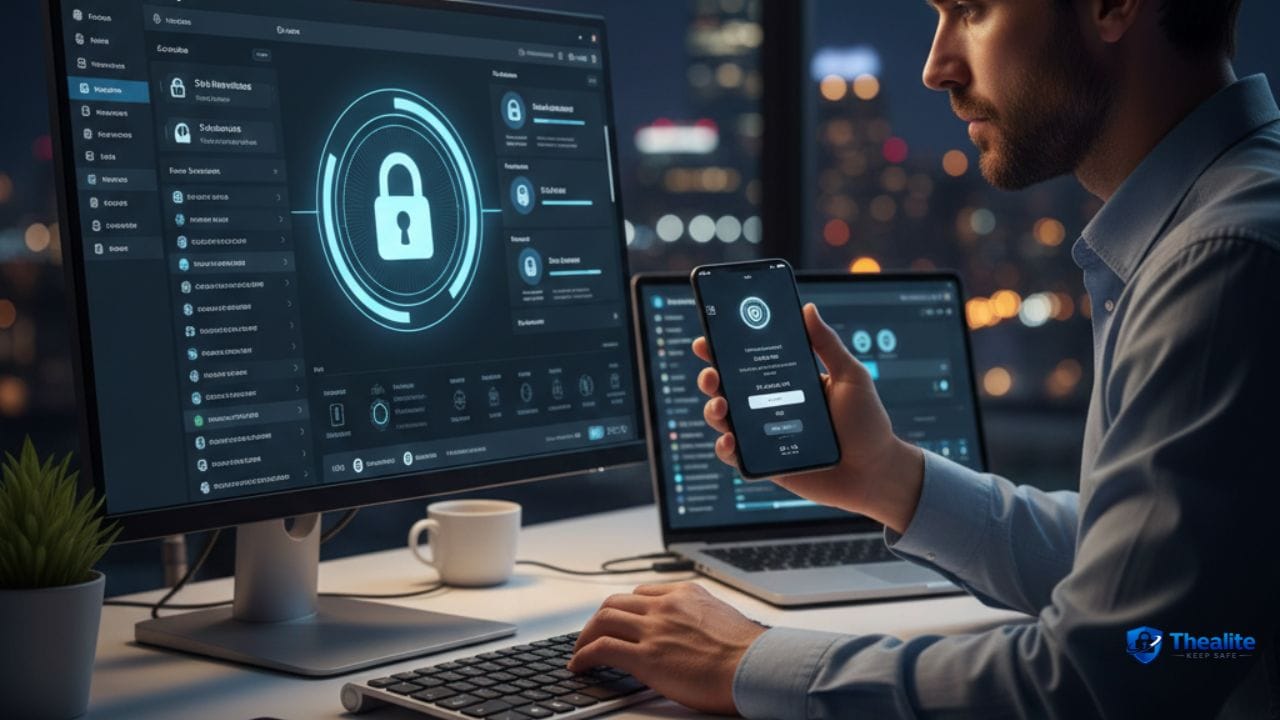
A password manager stores your logins safely and generates strong passwords for you.
That means you don’t need to memorize 50 passwords. You only memorize one strong master password.
What to look for:
- Strong encryption and a good security reputation
- Cross-device sync (phone + computer)
- Built‑in password generator
- Breach alerts (tells you if a password is exposed)
Step 2: Make Passwords Long and Unique
If you don’t use a password manager yet, at least follow these basics:
- One account = one password. No exceptions for email.
- Long beats complex. A long passphrase is strong and easier to remember.
- Avoid personal info: birthdays, names, phone numbers, favorite teams.
Step 3: Turn On MFA (2FA) Everywhere You Can
MFA is your second lock. Even if someone steals your password, MFA can stop them.
Start with: email, Apple/Google account, banking, crypto apps, and social media.
Best options (strongest to weakest):
- Security key (hardware key)
- Authenticator app codes
- Push approvals
- SMS text codes (better than nothing, but weaker)
Step 4: Protect Your Email (It Resets Everything)
Email is the master key to your online life.
If someone gets your email login, they can reset passwords for other accounts.
Do this for your email:
- Unique password + MFA
- Review recovery email/phone and remove old ones
- Turn on login alerts
Step 5: Fix Your Account Recovery Settings
Attackers don’t always guess passwords. Sometimes they use recovery options.
Check:
- Recovery email and phone number are correct and secure
- Security questions are not guessable (use random answers stored in your manager)
- Old devices and unknown sessions are removed
Step 6: Learn to Spot Phishing (The #1 Password Trap)
Phishing is when a fake site tricks you into typing your password.
Red flags:
- Urgent messages: “verify now” / “account locked”
- Sender email looks slightly wrong
- Link goes to a weird domain (misspelling or extra words)
- Asks for your MFA code or reset code (real companies won’t ask)
Safer habit: don’t login from email links. Open the app or type the website yourself.
Step 7: Don’t Save Passwords in Unsafe Places
A lot of people store passwords in places that feel easy but are risky.
Avoid storing passwords in:
- Plain notes apps or unencrypted text files
- Google Docs or shared documents
- Screenshots in your photo gallery
- Sticky notes on your desk
- Unsecured spreadsheets
If you need convenience, a password manager gives it—without the same risk.
Step 8: Keep Your Devices Clean and Updated
Even strong passwords can be stolen if your device is infected with malware.
Do this:
- Turn on automatic updates for your OS and browser
- Remove unused browser extensions
- Use reputable antivirus (especially on Windows)
- Lock your phone with a strong passcode
Step 9: Use Passkeys When Available
Passkeys are a newer login method supported by many major services.
They can reduce phishing risk because there’s no “password” to steal the same way.
If your main accounts offer passkeys, consider enabling them—especially for email and important services.
Step 10: Do a Monthly Password Check (5 Minutes)
Once a month, quickly review:
- Any reused passwords (change them)
- Any weak passwords (upgrade them)
- Any accounts you don’t use anymore (delete or disable)
- Recent logins and security alerts
If You Think Your Password Was Leaked
Act fast. Most damage happens in the first hours or days.
- Change the password immediately (make it unique).
- Turn on MFA if it isn’t already enabled.
- Sign out of other sessions/devices.
- Check account settings for suspicious changes (forwarding rules, recovery email).
- If it’s your email, secure it first—then secure everything else.
FAQs
What is the safest way to store passwords?
A reputable password manager is the safest and easiest option for most people because it creates unique passwords and stores them securely.
How often should I change my password?
Change passwords when there’s a breach, suspicious activity, or if the password is weak/reused. For strong unique passwords with MFA, constant changes aren’t always necessary.
Are browser-saved passwords safe?
They can be okay for low-risk accounts, but a dedicated password manager is usually stronger and gives better breach alerts and sharing controls.
What’s the biggest password mistake?
Reusing the same password across multiple accounts.
More “Keep Safe” Guides
Explore more safety topics at Thealite Keep Safe. For site details, see Privacy Policy, Terms, and Disclaimer.

As a digital marketer, she has received multiple international awards, including Campaign of the Year at the 2023 European Content Awards and Best Use of Content Marketing at the 2022 Global Search Awards. Nicai holds an MSc in Marketing (First Class Honours) from the UCD Smurfit Graduate Business School and she has also completed the Artificial Intelligence Programme at Oxford University’s Saïd Business School. She is also a contributing writer for publications such as Entrepreneur and Esquire.