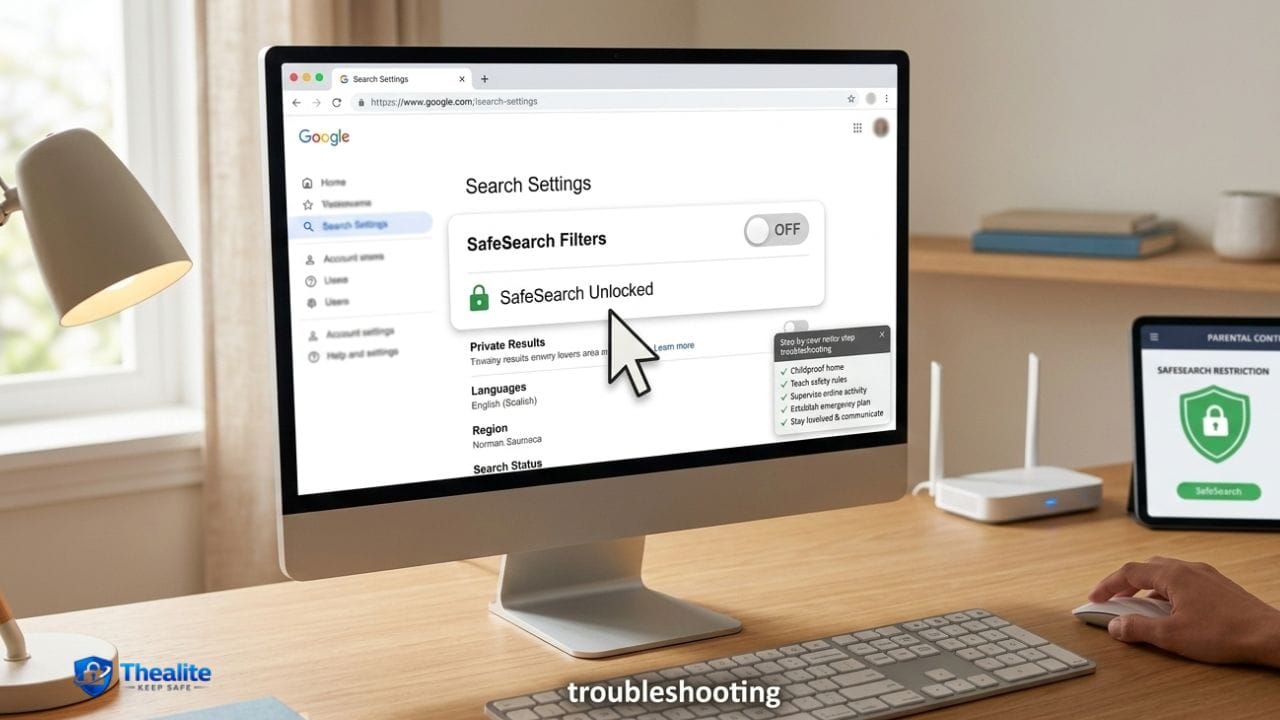
If SafeSearch keeps turning back on, it usually means one of three things is happening: (1) you turned it off in the search engine, but something else (a browser profile, cookie reset, or extension) keeps resetting it; (2) SafeSearch is locked by parental controls (Google Family Link, Microsoft Family Safety) or iPhone Screen Time; or (3) your network (school/work Wi‑Fi, router, or DNS) is enforcing filtering regardless of your device settings.
This guide walks you through turning SafeSearch OFF on Google and Bing, disabling YouTube Restricted Mode, and—most importantly—removing the reasons it keeps re-enabling so it stays off permanently on your devices.
Quick Answer
To keep SafeSearch off permanently, you have to do two things (1) turn it off in the search engine/app, and (2) remove anything that is locking or resetting it (Family Link/Screen Time, browser cookie clearing, extensions, device management, or DNS/router filters). If SafeSearch says it’s “locked,” you cannot permanently turn it off until the lock is removed.
Step 1: Turn Off SafeSearch on Google (Desktop Browser)
- Go to Google Search in your browser.
- Open Google settings (often “Settings” or a quick settings/gear icon).
- Find SafeSearch and switch it OFF.
- Save/confirm changes if prompted.
Tip: Google can store this preference via your Google account and/or cookies. If your browser deletes cookies on exit, SafeSearch may reset.
Step 2: Turn Off SafeSearch on Google (Android & iPhone)
Where you turn it off depends on how you search:
If you use the Google app
- Open the Google app.
- Tap your profile icon → Settings.
- Find SafeSearch and set it to Off.
If you use Safari/Chrome and search on Google.com
- Open Google.com in the browser.
- Open Google settings and toggle SafeSearch Off.
- Make sure your browser is not clearing cookies automatically.
Step 3: Turn Off Bing SafeSearch
- Go to Bing.com.
- Open Settings → More (or similar).
- Choose SafeSearch: Off.
- Save the setting.
Note: Bing SafeSearch settings can reset if your browser clears cookies, if you’re signed out, or if Windows/Microsoft Family Safety policies enforce it.
Step 4: Turn Off YouTube Restricted Mode
YouTube uses “Restricted Mode,” which is different from Google SafeSearch. Restricted Mode can also be enforced by a network administrator.
- Open YouTube → profile icon.
- Find Restricted Mode and switch it Off.
- If it’s locked, it may be enforced by a school/work network or device policy.
Step 5: The Real Fix — Stop SafeSearch From Turning Back On
If SafeSearch keeps re-enabling, check the most common causes below (in order).
Cause A: Your browser deletes cookies/history on close
SafeSearch preferences often rely on cookies or your signed-in account. If your browser is set to delete cookies on exit, the setting can reset.
- Check browser privacy settings for: “Clear cookies/history on exit.”
- If enabled, disable it or add an exception for Google/Bing.
- Stay signed into your Google/Microsoft account so the preference can persist.
Cause B: You’re signed out or switching profiles
- Make sure you’re signed into the same Google account when you change SafeSearch.
- If you use multiple Chrome profiles, confirm the setting in the profile you actually use.
- If you use Incognito/Private mode, settings often won’t persist (cookies are temporary).
Cause C: A browser extension or security app is enforcing filtering
Some parental control extensions, “safe browsing” add-ons, and security suites force SafeSearch on by modifying search URLs or settings.
- Temporarily disable extensions (especially family filters, ad blockers with ‘family’ features, or security add-ons).
- Test again after disabling to see if SafeSearch stays off.
- If you find the extension responsible, remove it or change its settings.
Cause D: Google SafeSearch is ‘Locked’ by Family Link / supervised account
If your Google account is supervised (often for kids/teens), SafeSearch can be enforced and cannot be turned off from the device.
- Check if the account is supervised via Google Family Link.
- The family manager must change the content settings or remove supervision.
- If you’re using a school-issued Google account, an admin may be enforcing it.
Cause E: iPhone/iPad Screen Time restrictions are forcing filtering
On iOS, Screen Time can enforce web content filtering that makes SafeSearch appear locked even if Google settings show Off.
- Go to Settings → Screen Time.
- Check Content & Privacy Restrictions.
- Look at Content Restrictions → Web Content.
- If it’s set to ‘Limit Adult Websites’ (or similar), switch to ‘Unrestricted Access’ (if allowed).
- If Screen Time is managed by someone else (family device), you’ll need the Screen Time passcode or admin change.
Cause F: Your Wi‑Fi/network is forcing SafeSearch via DNS or router filters
Some routers and DNS services enforce “safe browsing” across the entire network. Schools, workplaces, and public Wi‑Fi often do this.
- Test on a different network (cellular data/hotspot). If SafeSearch turns off there, your Wi‑Fi is enforcing it.
- Check your router’s parental control/content filtering settings.
- Check device DNS settings (some ‘family’ DNS providers force SafeSearch).
- If you’re on work/school Wi‑Fi, you usually can’t override network policies.
Cause G: Windows/Microsoft Family Safety is enforcing it (Bing/Edge)
- If a Microsoft family group is managing the account/device, SafeSearch may be enforced for Bing.
- Check Microsoft Family Safety settings on the parent/organizer account.
- If you’re using a work/school PC, policies may enforce SafeSearch.
Step 6: Make It ‘Permanent’ on Each Device (Best Practices)
Once you’ve turned it off and removed locks, use these practices so it stays off:
- Stay signed in to the same Google/Microsoft account on the devices you use.
- Avoid browsing modes that don’t persist cookies (Incognito/Private) if you want preferences saved.
- Don’t clear cookies automatically on exit—or whitelist Google/Bing cookies.
- Keep parental controls (Family Link/Screen Time/Family Safety) disabled if you are the adult owner and want unrestricted search.
- If a network enforces SafeSearch, switch to a different network you control for unrestricted searching.
Troubleshooting: ‘SafeSearch is Locked’ (Fast Checklist)
- Is this a supervised Google account (Family Link) or school/work account?
- Is Screen Time (iPhone/iPad) restricting web content?
- Is Microsoft Family Safety enforcing filters for Bing?
- Are you on a school/work/public Wi‑Fi with content filtering? (Test on cellular)
- Are cookies being cleared on exit?
- Is an extension/security app forcing filtering?
Common Questions
Why does SafeSearch keep turning back on?
Usually because cookies are being cleared, you’re signed out, you’re using a different browser profile, an extension is forcing it, or your account/network has a filter policy.
Can I keep SafeSearch off permanently at school or work?
Often no. Many organizations enforce filtering at the network or device-policy level. Your personal settings won’t override an administrator policy.
Does turning off SafeSearch affect YouTube?
Not directly. YouTube uses Restricted Mode, which must be turned off separately and can also be enforced by admins.
What if I don’t have access to the Screen Time passcode or Family Link manager?
Then you can’t permanently disable the restriction on that device/account. You would need the admin to change it or use your own unmanaged device/account.
Is it dangerous to turn SafeSearch off?
It depends on who uses the device. For adults on personal devices, it’s a preference. For shared devices or homes with kids, keeping some filters can reduce accidental exposure.
Conclusion
Turning SafeSearch off is easy—but keeping it off permanently requires removing whatever is locking or resetting it. Start by turning it off in Google/Bing/YouTube, then fix the underlying cause: account supervision (Family Link), iOS Screen Time, browser cookie clearing, extensions, or network-level filtering. Once those are handled, SafeSearch will stay off on your devices.

As a digital marketer, she has received multiple international awards, including Campaign of the Year at the 2023 European Content Awards and Best Use of Content Marketing at the 2022 Global Search Awards. Nicai holds an MSc in Marketing (First Class Honours) from the UCD Smurfit Graduate Business School and she has also completed the Artificial Intelligence Programme at Oxford University’s Saïd Business School. She is also a contributing writer for publications such as Entrepreneur and Esquire.