Being “safe online” isn’t about being paranoid or knowing advanced tech. It’s about preventing the most common real-world problems: account takeovers, identity theft, scams, and privacy leaks. Most online attacks succeed for simple reasons—reused passwords, weak security settings, or clicking a convincing phishing link.
This U.S.-focused guide gives a practical system you can use right away. You’ll learn the top safety habits, how to spot scams, how to protect your devices, and what to do if you think you’ve been hacked.
Quick Answer (The 12 Online Safety Rules)
- Use a unique password for every important account (no reuse).
- Turn on multi-factor authentication (MFA/2FA), especially for email and banking.
- Secure your email account first (it controls password resets).
- Keep your phone/computer updated and locked with a strong passcode.
- Don’t click login links in texts/emails—open the official app/site yourself.
- Never share verification codes with anyone (real support won’t ask).
- Use privacy settings: private accounts, limit who can message, hide contact info.
- Be cautious on public Wi‑Fi; avoid sensitive logins when possible.
- Download apps/extensions only from trusted sources; remove what you don’t use.
- Back up important data (so ransomware/device loss doesn’t ruin you).
- Use account alerts to catch problems early (logins, transfers, purchases).
- If hacked: secure email → change passwords → revoke sessions → report and monitor.
Step 1: Build Strong Account Security (Passwords + MFA)
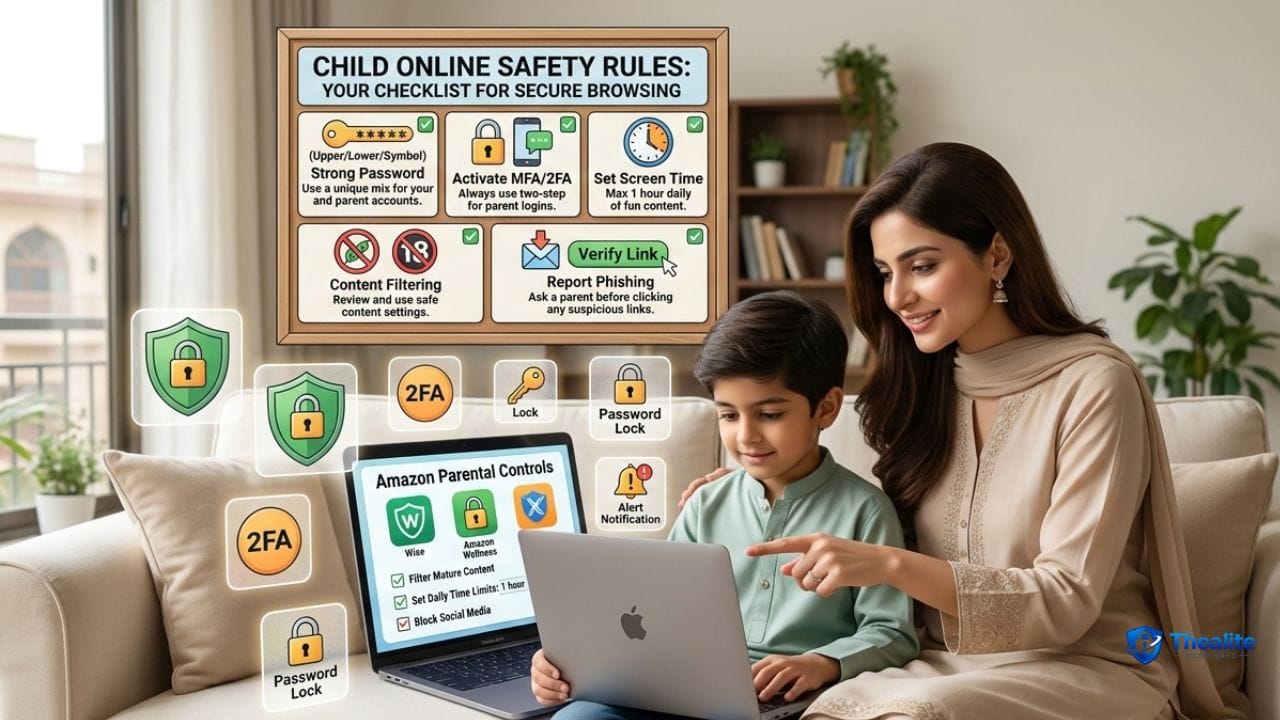
Account takeovers are one of the most common online problems. The solution is not complicated: unique passwords plus MFA.
Use unique passwords (the biggest win)
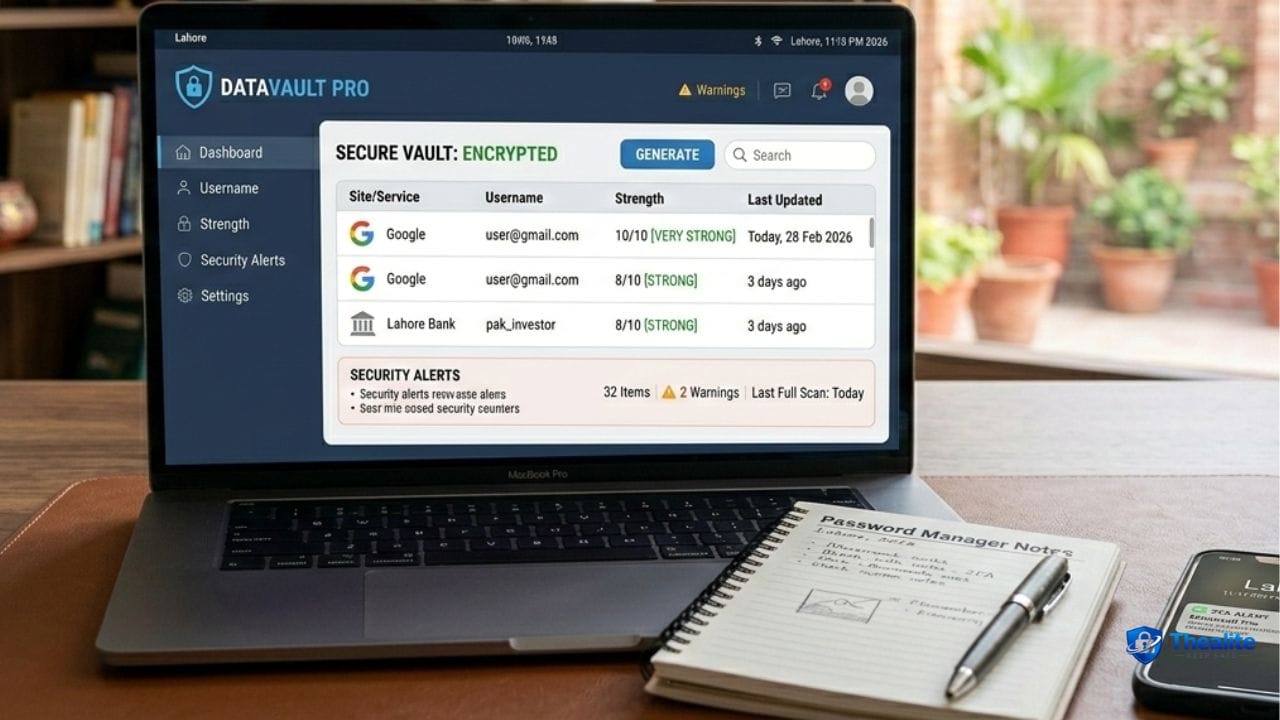
Password reuse is the #1 reason one data breach leads to multiple hacked accounts. If you reuse passwords, one leak can unlock everything.
- Use a password manager so you can have unique strong passwords without memorizing them.
- Change passwords immediately if you get a breach notification or suspicious alert.
- Avoid using personal details (pet names, birthdays) in passwords.
More: How to Keep Your Password Safe and How to Keep Passwords Safe.
Turn on MFA/2FA (the anti-hack layer)
MFA means a password alone isn’t enough. Even if someone steals your password, they still need a second factor.
- Use an authenticator app when available (stronger than SMS).
- Save backup codes in a safe place (not in a public note).
- Enable MFA for email, banking, cloud storage, and social media first.
Secure email first (email = reset key)
If someone gets your email, they can reset your passwords, access your documents, and impersonate you.
- Unique password for email + MFA enabled.
- Review recovery email/phone numbers and remove old ones.
- Watch for unexpected password reset messages.
Step 2: Learn the Phishing Rules (Scam-Proof Mindset)
Phishing is when scammers trick you into giving up your login or personal info. It often looks like a bank alert, delivery update, or ‘support’ message.
Common phishing patterns
- Urgency: “Your account will be locked today.”
- Fear: “Suspicious activity—verify now.”
- Reward: “You won a prize.”
- Authority: “This is your bank/IT.”
- Code theft: “Tell me the verification code you just received.”
Rules that stop most phishing
- Don’t click login links in texts/emails—open the official app/site yourself.
- Never share one-time codes or passwords with anyone.
- If you get a call, hang up and call the official number (back of card or official website).
- Slow down—urgency is a scam tool.
Step 3: Protect Your Devices (Phone and Computer)
Your device is the gateway to your accounts. If your phone is stolen or infected, your accounts can fall quickly.
Device security essentials
- Use a strong passcode and biometrics (avoid easy 4-digit codes).
- Turn on automatic updates for your operating system and apps.
- Enable Find My / remote wipe (helps if stolen).
- Lock your screen quickly (short auto-lock timer).
- Avoid installing unknown apps or “free” tools from untrusted sites.
Phone guide: Keep Phone Safe From Hackers.
Step 4: Safe Wi‑Fi and Network Habits
Public Wi‑Fi isn’t automatically evil, but it increases risk—especially if you’re logging into sensitive accounts.
Safer network rules
- Avoid banking and password changes on unknown public Wi‑Fi when possible.
- Use your cellular data for sensitive logins.
- At home: change default router password and use a strong Wi‑Fi password.
- Keep your router firmware updated (many routers have auto-update options).
Step 5: Privacy Settings (Reduce What Strangers Can Learn)
Privacy reduces targeting. The less strangers can learn about you, the harder it is for scammers to personalize attacks.
Quick privacy upgrades
- Set social profiles to private if you don’t need public exposure.
- Hide phone number and email where possible.
- Limit who can message or tag you.
- Turn off location sharing and avoid real-time travel posts.
- Review app permissions (location, contacts, microphone) and remove what you don’t need.
More: How to Keep Your Social Media Safe and Keep Personal Information Safe Online.
Step 6: Money Safety Online (Banking and Payments)
Financial accounts are high-value targets. The best defense is alerts, MFA, and cautious behavior with links and calls.
High-impact money safety steps
- Enable banking alerts for transfers, withdrawals, and card-not-present purchases.
- Use MFA for banking and payment apps.
- Never ‘move money to a safe account’ because a caller tells you to—this is a classic scam.
- Monitor statements and dispute suspicious activity quickly.
Banking guide: How to Keep Bank Account Safe and Keep Bank Account Safe Online.
Step 7: Backups (So You Don’t Lose Everything)
Backups protect you from device loss, accidents, and ransomware. If you can restore your files, you keep control.
- Back up photos and documents to a secure cloud account (with MFA).
- Keep at least one backup that isn’t always connected to your device.
- Test backups occasionally to make sure they work.
What to Do If You Think You’ve Been Hacked
If something feels off, act fast and in the right order.
Fast action plan
- Secure your email account first (new password + MFA).
- Change passwords for compromised accounts (use new unique passwords).
- Log out of other devices/sessions and remove unknown devices.
- Check recovery settings (email/phone) and remove anything unfamiliar.
- Turn on alerts and monitor your bank/payment accounts.
- Warn contacts if your account sent suspicious messages.
Copy/Paste Checklist: How to Keep Safe Online
- Unique passwords + password manager
- MFA enabled for email, banking, cloud, and social
- Email secured (recovery info updated, no unknown forwarding)
- Phone and computer updated; strong passcode; Find My on
- Phishing rules: no login links, no codes shared, verify by official channels
- Privacy settings tightened (messages, tags, location off)
- Apps/extensions reviewed; remove what you don’t use
- Bank alerts enabled; monitor transactions
- Backups enabled and tested
- If hacked: email → passwords → revoke sessions → report/monitor
FAQs
What is the best way to stay safe online?
Use unique passwords and MFA, and follow strict anti-phishing rules (don’t click login links and never share codes).
Is MFA really necessary?
Yes. MFA blocks many account takeovers even when your password is stolen.
How do I avoid scams online?
Slow down, verify requests through official channels, and don’t trust urgency messages that push you to click links or share codes.
What should I do if my account was hacked?
Secure your email first, change passwords, revoke unknown sessions, and monitor financial accounts if needed.
Is public Wi‑Fi safe?
It can be risky for sensitive actions. Use cellular data for banking and avoid changing passwords or accessing sensitive documents on unknown public Wi‑Fi.
Conclusion
To keep safe online, focus on what actually stops real-world problems: unique passwords, MFA, phishing awareness, secure devices, and tight privacy settings. Once you set up these layers, online safety becomes routine—and routine is what keeps you protected day after day.

As a digital marketer, she has received multiple international awards, including Campaign of the Year at the 2023 European Content Awards and Best Use of Content Marketing at the 2022 Global Search Awards. Nicai holds an MSc in Marketing (First Class Honours) from the UCD Smurfit Graduate Business School and she has also completed the Artificial Intelligence Programme at Oxford University’s Saïd Business School. She is also a contributing writer for publications such as Entrepreneur and Esquire.