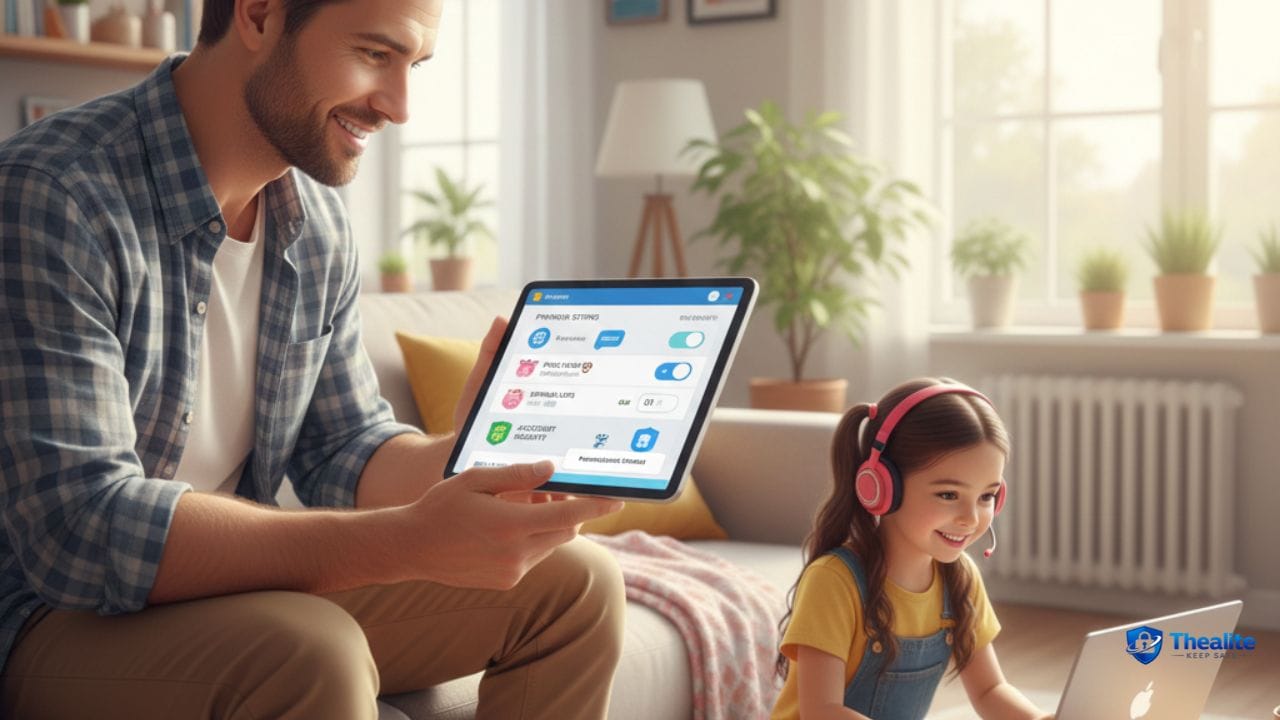
To keep kids safe on Roblox, combine platform settings with family rules. Start by linking a parent account to your child’s account and turning on Parental Controls. Then set content maturity, restrict who can message or chat, block risky experiences, set screen-time limits, and add spending limits for Robux. Finally, teach your child what to do if someone makes them uncomfortable: stop, block, report, and tell you.
Why Roblox Safety Needs Both Settings + Rules
Roblox is a huge platform with millions of experiences (games) and lots of social features. Kids can run into inappropriate content, unwanted messages, scams, or pressure to spend money. The safest approach is layers: the right account settings, active parent visibility, and clear behavior rules.
Step 1: Set Up Parental Controls (Parent Account Linked to Child)
Parental Controls work best when your parent account is linked to your child’s account. Once linked, you can manage key safety settings like content restrictions, communication limits, screen time, and spending.
Basic setup flow (simple):
- Create or sign in to your parent Roblox account.
- Link your account to your child’s account in Parental Controls.
- Set a Parental PIN so settings can’t be changed without you.
Step 2: Set Content Maturity (What Experiences Your Child Can Access)
Content maturity controls the types of experiences your child can play. Set this early, because it blocks higher-maturity content automatically.
Do this inside Parental Controls: choose a content maturity level that matches your child’s age and comfort.
Extra protection: block specific experiences you don’t want your child to access (even if they are in the allowed level).
Step 3: Lock Down Communication (Chat, Messages, and Who Can Contact Them)
Communication settings are one of the most important safety controls. Kids are safer when chat is limited and strangers can’t contact them freely.
Strong communication settings for most kids:
- Limit who can message your child (friends-only or off, depending on age).
- Limit who can chat in experiences.
- Limit who can join private servers or follow them into experiences.
- Turn off unknown friend requests if your child accepts everyone.
Step 4: Set Screen-Time Limits and Check Activity
Screen-time limits reduce risk because many problems happen when kids are online for long unsupervised stretches.
Good habits that work:
- Set a daily limit on Roblox time (weekdays vs weekends).
- Check the top experiences your child plays.
- Use ‘family check-ins’: a quick review of what they played and who they talked to.
Step 5: Add Spending Limits (Robux) and Protect Payments
Robux spending can get out of control fast. Set limits and avoid saving payment methods on a child’s device.
Recommended setup:
- Set a monthly spend limit for Robux.
- Turn off purchasing unless a parent approves.
- Use platform-level purchase protections on the device (iPhone/iPad, Android, Xbox, etc.).
Step 6: Teach These 7 Rules (Kid-Friendly, Easy to Remember)
You can copy/paste these rules into a family note and review them monthly.
- 1) Don’t share personal info (full name, school, address, phone, passwords).
- 2) Don’t click random links or “free Robux” offers.
- 3) Don’t move chats to other apps with strangers.
- 4) If someone is weird, pressuring, or mean: leave, block, and tell a parent.
- 5) Only accept friend requests from people you know in real life (or parent-approved).
- 6) Use a strong password and never share it with friends.
- 7) If anything feels uncomfortable, you won’t be in trouble for telling us.
Scams to Warn Kids About (Common on Gaming Platforms)
Keep this simple and direct. These are the ones kids fall for most often:
- “Free Robux” links and fake giveaways
- Trades that look too good to be true
- Someone asking them to log in on another website
- Someone asking for a verification code
- “I can make you famous / help you grow your account” messages
How to Use Block + Report (The Fastest Safety Button)
Blocking and reporting are built-in tools. Teach your child to use them the moment something feels wrong. The goal is to end contact quickly and create a report trail.
Parent tip: practice once together so your child doesn’t freeze in a stressful moment.
If Your Child Is Upset or Something Feels Wrong
Stay calm and focus on getting facts.
- Ask: “Show me what happened.”
- Save proof (screenshots, usernames, experience name).
- Block and report the user.
- Check privacy + communication settings again.
- If there’s any immediate risk or threats, contact local authorities.
Best Setup by Age (Simple Guidance)
Every family is different, but this basic structure works for most households:
Under 9
- Tight content maturity settings
- Chat and messaging off (or heavily restricted)
- Friends limited to real-life people
- Short play sessions with supervision
Ages 9–12
- Content maturity set carefully + block questionable experiences
- Friends-only messaging (or off if problems happen)
- Spending limits on Robux
- Screen time limits + weekly check-in
Teens
- Content maturity still matters (avoid ‘Restricted’ content if not appropriate)
- Teach scam spotting and privacy rules
- Spend limits + accountability
- Agree on boundaries: no private chats with strangers, no secret accounts
Quick Checklist: Keep Kids Safe on Roblox
- Parental Controls linked + Parental PIN
- Content maturity set + block unwanted experiences
- Communication restricted (messages/chat)
- Screen-time limits enabled
- Spending limits for Robux
- Child knows: don’t share info, don’t click links, block/report fast
FAQs
Is Roblox safe for kids?
It can be safer when you use Parental Controls and set clear rules. Risk depends on content access, communication settings, and how closely the account is supervised.
Should I let my child chat on Roblox?
If you allow chat, keep it limited (friends-only) and monitor behavior. For younger kids, turning chat off is often the simplest safety choice.
How do I stop my child from spending money on Roblox?
Use spending limits, require approvals for purchases, and don’t save payment methods on the child’s device.
What should my child do if someone is creepy or pushy?
Leave the experience, block the user, report them, and tell a parent immediately.
More “Keep Safe” Guides
For general online protection, read how to keep children safe online. For more topics, visit Thealite Keep Safe.

As a digital marketer, she has received multiple international awards, including Campaign of the Year at the 2023 European Content Awards and Best Use of Content Marketing at the 2022 Global Search Awards. Nicai holds an MSc in Marketing (First Class Honours) from the UCD Smurfit Graduate Business School and she has also completed the Artificial Intelligence Programme at Oxford University’s Saïd Business School. She is also a contributing writer for publications such as Entrepreneur and Esquire.