Your computer is the hub for your digital life: email, banking, files, passwords, photos, work documents, and social accounts. That makes it a top target for malware, phishing scams, and account takeovers. The good news is you don’t need to be a tech expert to stay protected—you need a few reliable habits that cover the most common risks.
This U.S.-focused guide covers the essentials: updates, malware protection, safe browsing, passwords and MFA, Wi‑Fi security, backups, privacy, and exactly what to do if you think your computer is compromised.
Quick Answer (The 12 Computer Safety Rules)
- Turn on automatic updates for your operating system and apps.
- Use a standard (non-admin) account for daily use when possible.
- Use reputable anti-malware protection and keep it updated.
- Avoid suspicious downloads and “free” cracked software.
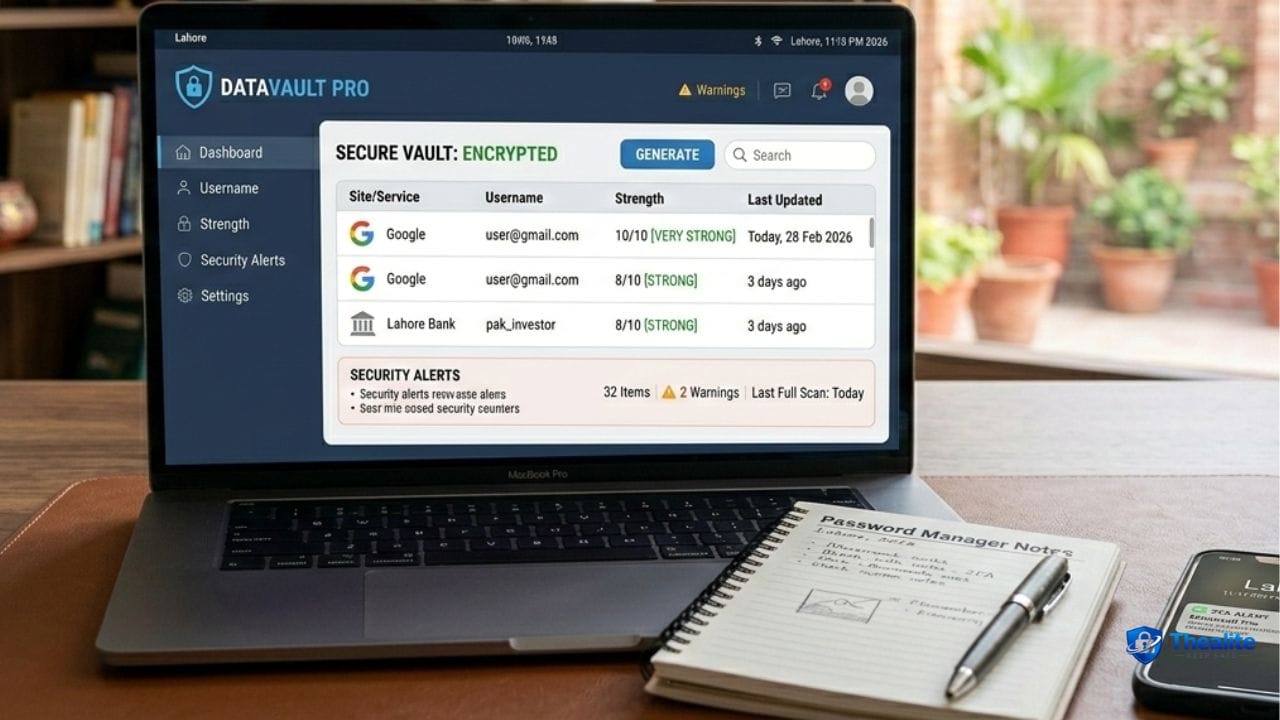
- Use a password manager and unique passwords for important accounts.
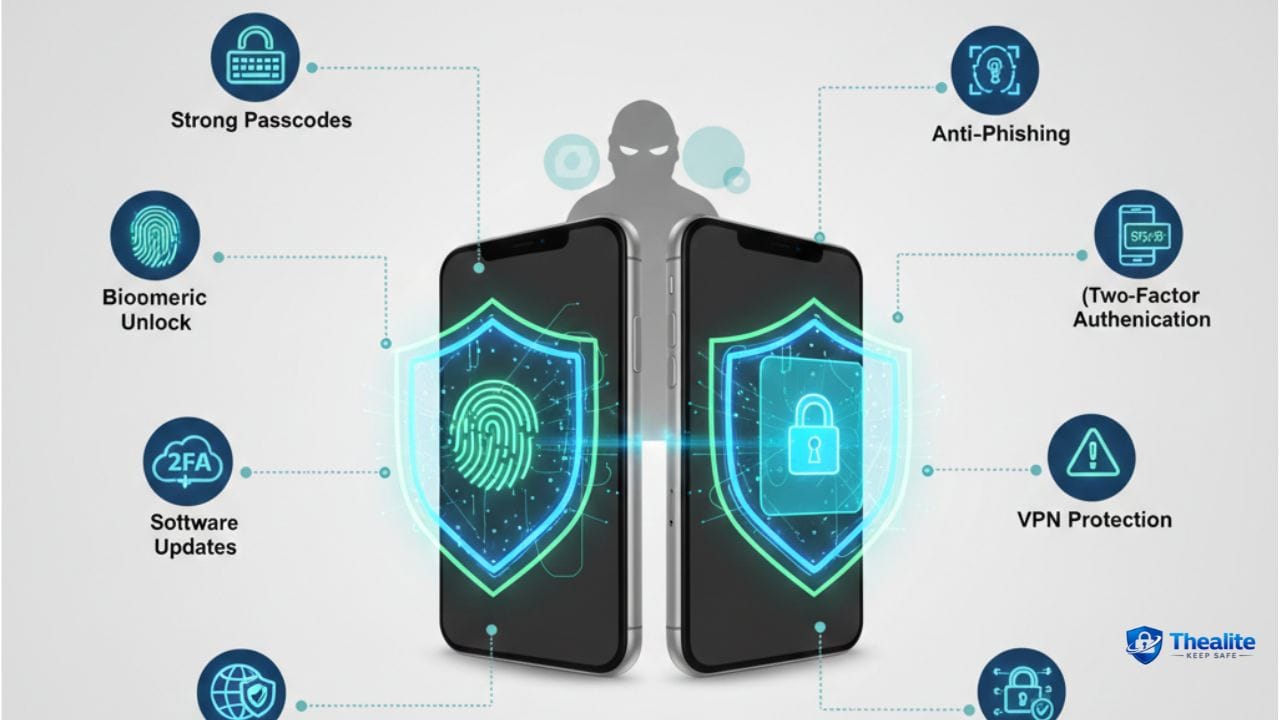
- Turn on MFA for email, banking, cloud storage, and your password manager.
- Be strict about phishing: don’t click login links—open the site/app directly.
- Use secure Wi‑Fi (strong router password, WPA2/WPA3) and avoid risky public networks for banking.
- Back up important files (cloud + one offline/secondary backup) to reduce ransomware impact.
- Lock your screen when you step away; use a strong device password.
- Limit browser extensions and app permissions (less access = less risk).
- If you suspect infection: disconnect → scan → change passwords → monitor accounts.
1) Keep Your System Updated (The Biggest “Easy Win”)
Most serious infections and hacks rely on known vulnerabilities that already have patches. Automatic updates close those holes without you doing anything complicated.
Update priorities
- Operating system updates (Windows/macOS)
- Browser updates (Chrome/Edge/Safari/Firefox)
- Office/PDF reader updates
- Security tools and drivers (only from trusted sources)
2) Use Strong Logins (Passwords + MFA)
Many computer compromises start with account takeover—especially email. If attackers get your email, they can reset other accounts.
Password rules that work
- Use a unique password for every important account (no reuse).
- Use a password manager so unique passwords are realistic.
- Turn on MFA/2FA for email, banking, cloud storage, and social accounts.
- Never share one-time verification codes—real support won’t ask.
More: How to Keep Your Passwords Safe • How to Keep Your Password Safe.
3) Install Malware Protection (And Don’t Turn It Off)
Baseline protection should be enabled at all times. The key is to keep protection on and updated.
- Use reputable built-in or trusted anti-malware tools.
- Run periodic scans (especially after suspicious downloads).
- Avoid installing multiple “security tools” that fight each other.
4) Avoid the Biggest Malware Traps
Most malware infections are user-driven: a bad download, a fake update, or a cracked program. If you avoid the common traps, your risk drops fast.
High-risk behaviors to avoid
- Downloading cracked software, keygens, or pirated apps.
- Clicking “Your computer is infected” pop-ups and installing their ‘fix.’
- Opening unexpected attachments or enabling macros in office files.
- Installing random browser extensions that promise “free” features.
5) Phishing Protection (Most Common Real-World Threat)
Phishing messages are designed to trick you into typing your password into a fake login page or installing malware.
Phishing rules that block most attacks
- Don’t click login links in emails/texts—open the site/app directly.
- Hover over links to check where they really go (desktop).
- Be suspicious of urgency (“act now”) and threats (“account locked”).
- If a message asks for money, gift cards, or codes, assume scam until proven otherwise.
Online safety guide: How to Keep Safe Online.
6) Browser Safety (Where Most Risk Lives)
The browser is the doorway to phishing, malicious ads, and shady downloads. Small browser choices matter.
Browser safety habits
- Keep your browser updated (auto-update).
- Limit extensions to only what you truly need (and audit them).
- Don’t allow websites to install software or push notifications unnecessarily.
- Use separate profiles for work vs personal browsing if possible.
7) Secure Your Wi‑Fi and Home Network
A secure home network reduces exposure and protects smart devices too.
Wi‑Fi upgrades that matter
- Change the router’s default admin password.
- Use WPA2 or WPA3.
- Use a long Wi‑Fi password.
- Keep router firmware updated.
- Use a guest network for visitors and smart devices when possible.
Public Wi‑Fi rule
- Avoid banking and password resets on unknown public Wi‑Fi when possible.
- Use a hotspot/cellular data for sensitive actions.
8) Backups (Your Best Defense Against Ransomware)
Ransomware locks your files and demands payment. Backups keep you in control.
A practical backup strategy
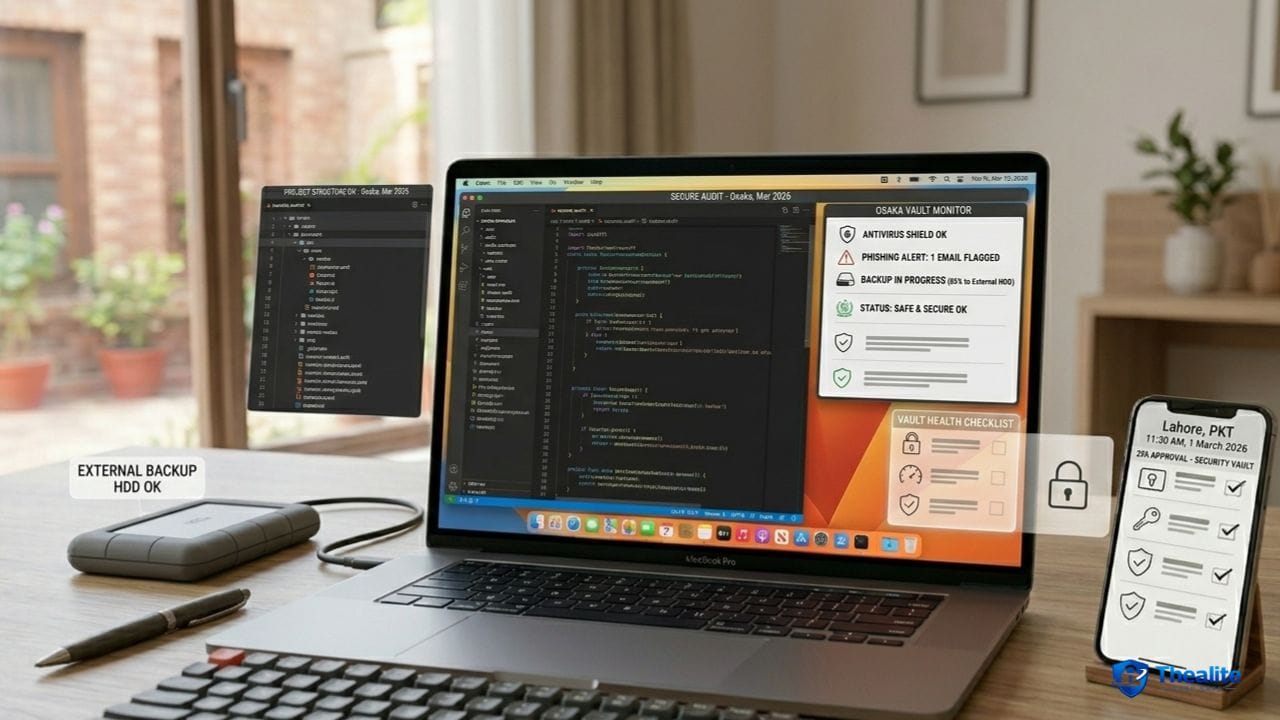
- Cloud backup for convenience (protect with strong password + MFA).
- A second backup that’s not always connected (external drive or secondary storage).
- Test restores occasionally.
Data safety resource: How to Keep Data Safe and Secure.
9) Protect Confidential Files (Work and Personal)
If your computer contains sensitive documents, treat file access and sharing carefully—accidental sharing can be as damaging as hacking.
- Use separate user accounts on shared computers.
- Lock the screen when you step away.
- Use encrypted storage features when available for highly sensitive data.
- Share files using least-access links (view-only, expiration) when possible.
More: How to Keep Confidential Information Safe • How to Keep Information Safe.
10) Money and Identity Safety on Computers
Banking and identity theft risks increase if your computer is insecure.
- Enable banking alerts and account notifications.
- Use MFA for banking and payment apps.
- Avoid saving card details on unknown sites.
- Be cautious of ‘support’ pop-ups and phone numbers in ads.
Related: Keep Bank Account Safe Online • How to Keep Your Identity Safe Online.
What to Do If You Think Your Computer Is Infected
Act fast and follow a calm order.
Fast response steps
- Disconnect from the internet (Wi‑Fi off / unplug ethernet).
- Run a full malware scan with your trusted security tool.
- Update the system and browser.
- Change passwords—starting with email—using a clean device if possible.
- Enable MFA if it wasn’t enabled.
- Check bank and important accounts for suspicious activity.
- If ransomware is involved, prioritize restoring from backups rather than paying.
Copy/Paste Checklist: Keep Your Computer Safe
- Auto-updates ON (OS, browser, key apps)
- Unique passwords + password manager; MFA for email/banking/cloud
- Anti-malware protection enabled and updated
- No cracked software; avoid shady downloads and fake updates
- Phishing rules: don’t click login links; never share codes
- Browser cleaned: minimal extensions; limit site notifications
- Router secured: admin password changed; WPA2/WPA3; firmware updated
- Backups: cloud + one offline/secondary backup; test restores
- Lock screen when away; separate accounts on shared computers
- If compromised: disconnect → scan → change passwords → monitor accounts
FAQs
Do I really need antivirus/anti-malware if I’m careful?
Careful habits help a lot, but malware protection adds a safety net—especially against compromised ads, bad downloads, and new threats.
What’s the #1 thing I can do to keep my computer safe?
Turn on automatic updates and use strong account security (unique passwords + MFA), especially for email.
Is public Wi‑Fi dangerous for laptops?
Public Wi‑Fi increases risk for sensitive actions. Avoid banking and password resets on unknown networks; use a hotspot when possible.
How can I tell if my computer is infected?
Signs include pop-ups, redirects, new unknown apps, sudden slowdowns, or accounts acting strangely. When in doubt, disconnect and scan.
Should I back up my computer even if I use cloud storage?
Yes. Cloud sync isn’t always true backup. A separate backup (including an offline option) protects against ransomware and accidental deletion.
Conclusion
To keep your computer safe, focus on the fundamentals that stop most real-world problems: automatic updates, strong passwords and MFA, malware protection, careful browsing habits, secure Wi‑Fi, and reliable backups. Once these layers are in place, your computer becomes much harder to compromise—and much easier to recover if anything ever goes wrong.

As a digital marketer, she has received multiple international awards, including Campaign of the Year at the 2023 European Content Awards and Best Use of Content Marketing at the 2022 Global Search Awards. Nicai holds an MSc in Marketing (First Class Honours) from the UCD Smurfit Graduate Business School and she has also completed the Artificial Intelligence Programme at Oxford University’s Saïd Business School. She is also a contributing writer for publications such as Entrepreneur and Esquire.