“Information safety” sounds like a tech problem, but for most people it’s a daily-life problem. Your information is what lets you open bank accounts, reset passwords, file taxes, get medical care, and prove who you are. When the wrong person gets it, the results can be expensive and exhausting: fraud charges, stolen accounts, fake loans, and long-term identity theft.
The good news: you don’t need to be a cybersecurity expert to protect yourself. You need a simple system—strong account security, safer device habits, and smart storage for sensitive documents. This guide is written for a U.S. audience and covers online and offline protection.
Related reading on your site: Keep Personal Information Safe Online • How to Keep Data Safe and Secure • How to Keep Your Identity Safe Online • Keep Bank Account Safe Online • Why Is It Important to Keep Your Data Safe
Quick Answer (The 10 Habits That Protect Most People)
- Use unique strong passwords for important accounts (email, banking, Apple/Google).
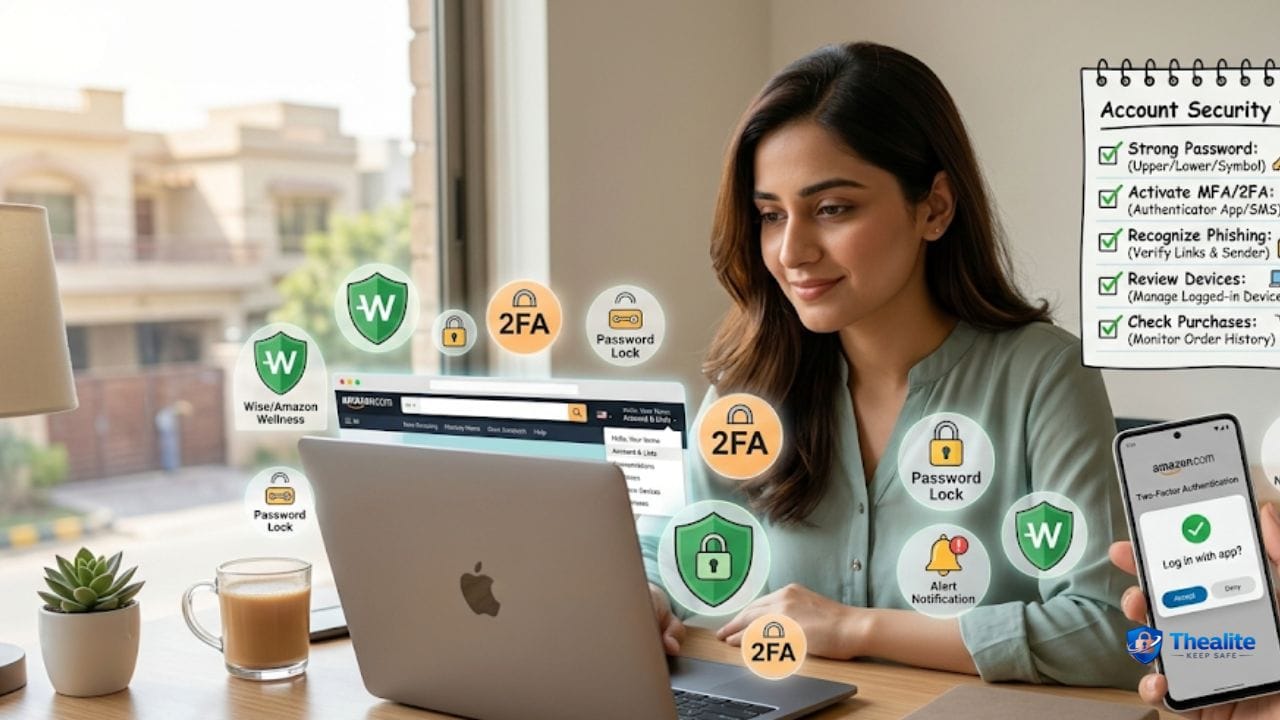
- Turn on multi-factor authentication (MFA)—prefer authenticator apps over SMS when possible.
- Protect your email first: it controls password resets for everything else.
- Keep phones and computers updated (auto-updates ON).
- Lock devices with strong passcodes and enable remote find/erase features.
- Limit what you share publicly on social media (privacy settings matter).
- Store sensitive documents securely (locked + backed up).
- Avoid logging into sensitive accounts on public Wi‑Fi; use cellular or a trusted VPN.
- Watch for phishing: don’t click surprise links—go to sites directly.
- If exposed: secure email + banking first, then change reused passwords and monitor accounts.
What Counts as ‘Sensitive Information’?
Protecting information starts with knowing what’s valuable to criminals. Examples include:
- Identity data: Social Security number, driver’s license number, passport details, date of birth
- Account access: passwords, PINs, security questions, verification codes, recovery emails
- Financial info: bank logins, credit card numbers, payment app access, tax returns
- Medical and school data: patient portals, insurance details, student records
- Work info: client data, internal files, login credentials, company documents
- Personal life data: address, routines, kid’s school, real-time location
The Biggest Ways Information Gets Stolen
Most “hacks” are actually simple. The top real-world causes are:
- Phishing (fake texts/emails that steal logins)
- Password reuse (one breach unlocks multiple accounts)
- Weak device security (no lock screen, outdated software)
- Public Wi‑Fi or fake hotspots
- SIM swap attacks (phone number hijacked for codes)
- Oversharing on social media
- Lost or stolen documents/devices
- Unsecured paper mail and trash (dumpster diving)
Step 1: Secure Your Most Important Accounts
If you only secure a few accounts, start with these: **email**, **banking**, and your **Apple ID/Google account**. If a criminal gets your email, they can reset passwords for almost everything.
Email security checklist
- Set a long unique password (don’t reuse).
- Turn on MFA using an authenticator app (or security key if available).
- Review account recovery options and remove old phone numbers/emails.
- Check recent sign-in activity and sign out unknown devices.
Helpful: How to Keep Your Password Safe and How to Keep Passwords Safe.
Banking and payment safety
- Turn on transaction alerts for every purchase/transfer.
- Use MFA and strong passwords for banking apps.
- Never share verification codes (banks won’t ask for them).
- Review statements regularly—even small ‘test’ charges matter.
Related: Keep Bank Account Safe Online.
Step 2: Use a Password Manager (So You Don’t Reuse Passwords)
Password reuse is one of the top causes of account takeover. A password manager makes unique passwords realistic because you don’t have to memorize everything.
Password manager best practices
- Use a strong master password (long and unique).
- Turn on MFA for the password manager account if offered.
- Replace reused passwords starting with email, banking, and shopping accounts.
Step 3: Turn On MFA the Smart Way
Multi-factor authentication adds a second lock. Even if a password leaks, attackers still need the second factor.
Safer MFA order (best to weaker)
- Security key
- Authenticator app codes (TOTP)
- In-app push prompts
- SMS text codes (better than nothing, but more vulnerable to SIM swaps)
Step 4: Protect Your Phone and Computer
Devices are where accounts live. If your phone is compromised, your accounts often follow.
Device hardening checklist
- Use a strong device passcode (not 4 digits).
- Enable biometrics (Face ID/Touch ID/fingerprint).
- Turn on automatic updates for the OS and apps.
- Enable Find My / Find My Device and test it.
- Review app permissions (location, mic, camera, photos).
Phone-specific guide: How to Keep My Phone Safe From Hackers and Keep Phone Safe From Hackers.
Step 5: Practice Safer Wi‑Fi and Browsing Habits
Public Wi‑Fi isn’t automatically evil, but it increases risk. The biggest danger is logging into sensitive accounts on unknown networks.
Wi‑Fi rules that work
- Use cellular data for banking when possible.
- Turn off auto-join for public networks.
- Don’t click login links from emails/texts—type the site yourself.
- Be cautious of ‘free Wi‑Fi’ networks with suspicious names.
Step 6: Protect Paper Documents and Mail
Information theft can happen offline too—through stolen mail, lost documents, or paperwork tossed in the trash.
Paper security best practices
- Use a locking mailbox or pick up mail quickly.
- Shred sensitive mail (bank statements, insurance letters, tax documents).
- Store passports, birth certificates, and Social Security cards in a secure location.
- Don’t carry unnecessary documents daily (reduce loss risk).
Document storage: How to Keep Important Documents Safe at Home and Keep Important Documents Safe Online.
Step 7: Control What You Share (Privacy Settings Matter)
Scammers love social media because it provides personal details for convincing stories. Lock down your profiles and think twice before posting real-time location or routines.
Quick privacy upgrades
- Set accounts to private where possible.
- Limit who can DM/message you.
- Remove public birthday, phone number, and address.
- Avoid posting travel plans in real time; post after you return.
Related: Keep Personal Information Safe Online.
Step 8: Backups (So Loss Doesn’t Become Disaster)
Backups protect against theft, device failure, and ransomware. They also reduce panic if you must wipe a hacked device.
Backup basics
- Turn on automatic cloud backup for your phone photos and contacts.
- Back up important documents to a secure cloud folder and/or encrypted external drive.
- Keep recovery codes in a secure place (not plain text on the same phone).
If Your Information Was Exposed: What to Do First
When something goes wrong, act in this order: **email → money → devices → everything else**.
- Secure email: change password, enable MFA, sign out unknown devices, check forwarding rules.
- Secure banking/payment apps: change passwords, review transactions, contact bank if needed.
- Change reused passwords on other accounts (start with the most important).
- Update devices, scan for malware, and factory reset if compromise is serious.
- Monitor for identity theft (U.S.): consider credit monitoring or a credit freeze if needed.
Information Safety Checklist (Copy/Paste)
- Email secured (unique password + authenticator MFA)
- Unique passwords for important accounts (password manager)
- MFA enabled on banking and key apps
- Auto-updates ON (phone/computer/apps)
- Device lock + Find My enabled
- Privacy settings tightened (limit public info)
- Documents stored securely (locked + backed up)
- Shred sensitive mail; pick up mail quickly
- Avoid public Wi‑Fi logins for banking
- Account alerts turned on (bank + cards)
FAQs
What’s the #1 thing I can do to keep information safe?
Secure your email with a unique strong password and MFA. Email controls password resets, so it’s the most important account to protect.
Is it safe to store passwords in notes or Google Docs?
It’s risky, especially if the document is shared or the account is compromised. A reputable password manager is usually safer for most people.
Do I really need multi-factor authentication?
Yes. MFA blocks many account takeovers even if your password leaks in a breach.
How do scammers get my information?
Often through phishing links, data breaches, oversharing on social media, or stolen mail/devices.
What should I do after a data breach notice?
Change the affected password immediately, stop reuse on other sites, and prioritize securing email and banking accounts first.
Conclusion
Keeping information safe is about building layers: strong passwords, MFA, updated devices, careful sharing, and secure document storage. You don’t have to do everything at once—start with email and banking, then expand to devices and privacy. Those steps prevent most real-world attacks and make you far harder to scam.

As a digital marketer, she has received multiple international awards, including Campaign of the Year at the 2023 European Content Awards and Best Use of Content Marketing at the 2022 Global Search Awards. Nicai holds an MSc in Marketing (First Class Honours) from the UCD Smurfit Graduate Business School and she has also completed the Artificial Intelligence Programme at Oxford University’s Saïd Business School. She is also a contributing writer for publications such as Entrepreneur and Esquire.