Kids don’t need the internet to be “perfectly safe” to benefit from it—but they do need boundaries. In the U.S., most online problems for kids come from predictable sources: oversharing, private messaging with strangers, scams, cyberbullying, and accounts that aren’t secured.
This guide gives you a practical system you can apply in any household. It focuses on the big safety layers: privacy settings, messaging rules, device controls, and a family culture where kids feel safe telling you when something goes wrong.
Quick Answer (The 9 Rules That Prevent Most Problems)
- Private accounts by default; limit profile info (no school/address/phone).
- No private messaging with strangers (especially for younger kids).
- Parents set up the device first: updates on, screen lock on, parental controls on.
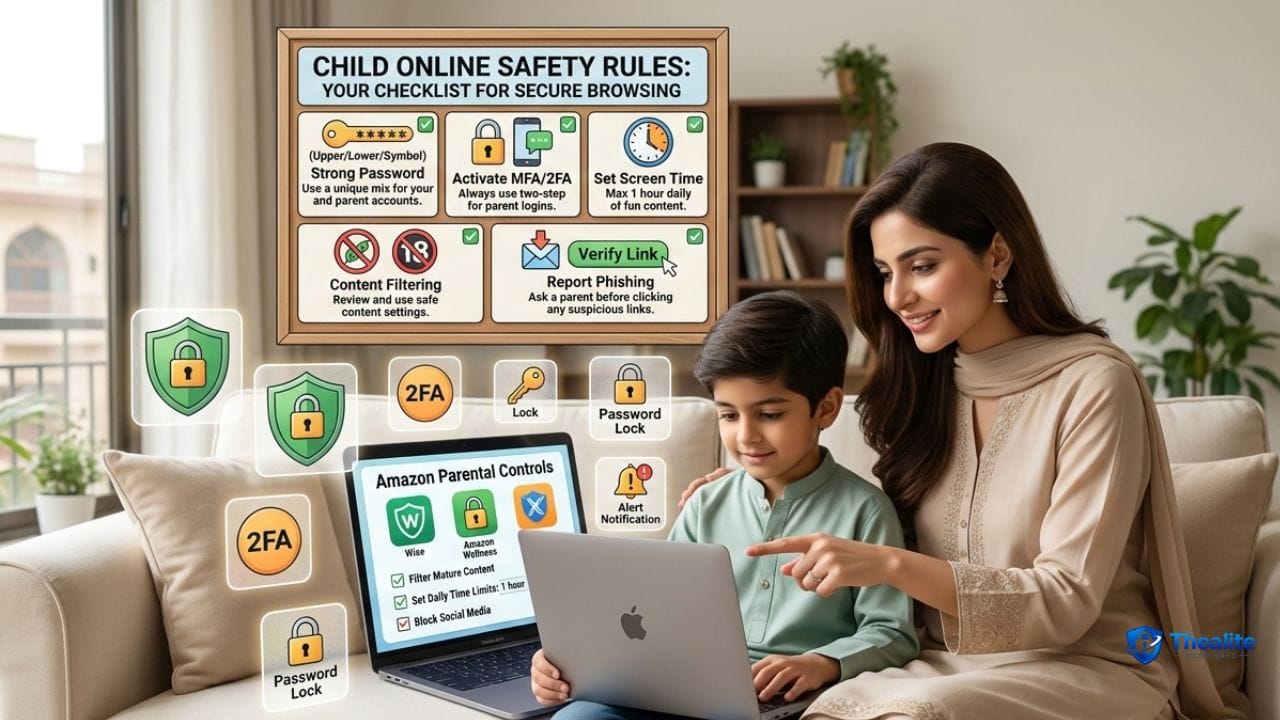
- Use strong passwords + MFA for parent and teen accounts; secure the parent email account.
- Location sharing off by default; never post real-time location or routines.
- In games, restrict chat/voice; keep friend lists tight; report/block early.
- Teach scam and phishing awareness (fake prizes, “support” messages, urgent threats).
- Create a “no trouble for telling” rule: reporting problems is always safe.
- If something goes wrong: save evidence, block/report, tighten settings, and escalate to school/platform if needed.
Step 1: Start With the Big Threats (In Plain English)
Most online risks fall into a few buckets:
- Oversharing: kids reveal personal details that can be exploited.
- Stranger contact: grooming attempts or manipulation through private messages.
- Cyberbullying: harassment, humiliation, or threats.
- Scams: fake giveaways, fake support, gift-card pressure, “free Robux” type scams.
- Account takeover: weak/reused passwords lead to hacked profiles.
Step 2: Set Family Rules Kids Can Actually Follow
Rules work only if they’re simple. Here are the most effective ones:
The ‘personal info’ rule
- Never share: full name, school name, home address, phone number, or daily schedule.
- No posting photos that show school logos, house numbers, street signs, or license plates.
- No quizzes that reveal security answers (pet name, first school, hometown).
Related: Keep Personal Information Safe Online.
The ‘messaging’ rule
- Kids can chat only with people they know in real life (or parent-approved).
- If anyone asks for secrets, photos, money, gift cards, or to move to another app—tell a parent immediately.
- No “second platforms” with strangers (Discord/DMs/text) without parent approval.
The ‘location’ rule
- No real-time location posts (post after you leave).
- Location sharing off unless there’s a clear family reason.
- Don’t share travel plans publicly.
The ‘downloads and links’ rule
- No downloading random files or clicking ‘free item’ links.
- If a message creates urgency—pause and ask a parent.
- Only install apps/games with parent approval.
Step 3: Lock Down Devices (The Parent Setup Checklist)
Most online safety improves dramatically when the device is set up correctly. Do this once, then review monthly.
Phone/tablet basics
- Turn on automatic updates (operating system + apps).
- Use a strong device passcode and biometrics.
- Enable Find My / Find My Device.
- Review app permissions (location, camera, mic, photos).
- Use parental controls (screen time, content limits, purchases).
Device security overlap: Keep Phone Safe From Hackers • How to Keep My Phone Safe From Hackers.
Wi‑Fi and home network basics
- Use a strong Wi‑Fi password and update router firmware if you can.
- Don’t let kids join unknown public Wi‑Fi for sensitive logins.
- Consider a separate guest network for smart devices (optional).
Step 4: Make Accounts Hard to Hack (Passwords + MFA)
Account takeover is common because kids reuse passwords. Secure accounts like you would protect a house key.
Account security rules
- Unique password for each major account (email, Apple/Google, gaming, social).
- Turn on MFA for parent accounts and teen accounts where possible.
- Secure the parent email account (it controls password resets).
- Use a password manager if your family can handle it (makes unique passwords realistic).
Related: How to Keep Your Password Safe • How to Keep Passwords Safe.
Step 5: Social Media Safety (The Settings That Matter)
For most platforms, these settings reduce risk fast:
- Private profile (especially under 16).
- Limit who can message/comment (friends only).
- Hide phone number/email from profile.
- Review tagged photos/posts before they appear.
- Turn off location tagging and “nearby” features.
More: How to Keep Your Child Safe on Social Media.
Step 6: Gaming Safety (Roblox and Beyond)
Gaming is social. That’s why it needs guardrails—especially around chat, voice, and trading.
Gaming rules that work
- Restrict chat/voice for younger kids; use friends-only when possible.
- Keep friend lists small and real-life only (or parent-approved).
- No ‘free currency’ links (Robux/V-Bucks scams are common).
- Teach kids to report and block immediately—don’t argue with trolls.
- Avoid sharing personal info in usernames, bios, or chat.
Roblox-specific guide: How to Keep Kids Safe on Roblox.
Step 7: Teach Kids the ‘Red Flag’ Signals
Kids need simple patterns to recognize trouble. Teach these red flags:
- “Keep this secret” or “don’t tell your parents.”
- Requests for photos, money, gift cards, or codes.
- Pressure to move to private chat apps.
- Threats or humiliation (“I’ll leak this if you don’t…”).
- Fake authority: “I’m support / I’m a mod / I’m the police.”
- Anything that feels scary, confusing, or too fast.
Predator prevention deeper dive: How to Keep Your Child Safe From Predators.
Step 8: Cyberbullying Plan (What Parents Should Do)
If bullying happens, your response matters. Use a calm, structured plan:
- Save evidence (screenshots, usernames, message links).
- Block and report; don’t engage with the bully.
- Tighten privacy settings and review friend lists.
- If it involves school peers, notify the school with evidence.
- If threats are serious or involve exploitation, escalate to the platform and consider contacting local authorities.
Step 9: Build a ‘Safe to Tell’ Family Culture
Kids hide problems when they fear losing the device. A better approach is a clear promise: “If you tell us, you won’t be in trouble for telling.”
- Praise honesty first, then solve the problem together.
- Use consequences for repeated risky behavior, but separate that from reporting.
- Schedule short check-ins (weekly) instead of surprise phone grabs.
Copy/Paste Checklist: Keep Kids Safe Online
- Device updates ON + strong passcode + Find My enabled
- Parental controls enabled (screen time, purchases, content)
- Private social profiles; DMs restricted to friends
- No personal info sharing (school/address/phone/schedule)
- No private messaging with strangers; no moving to other apps
- Gaming chat/voice restricted; friends list controlled
- Unique passwords + MFA where possible; email secured
- Red flags taught: secrets, requests, threats, gift cards, “support” scams
- If trouble: save evidence → block/report → tighten settings → escalate if needed
FAQs
What’s the #1 rule for kids online safety?
No private messaging with strangers and no sharing personal information. Those two rules prevent many of the worst outcomes.
Should parents read their child’s messages?
It depends on age and risk. For younger kids, more supervision is normal. For teens, use a mix of trust, boundaries, and safety check-ins while respecting privacy where appropriate.
How can I protect my child on Roblox and games?
Restrict chat/voice, limit friends to real-life contacts, and teach kids to report/block quickly. Avoid ‘free currency’ links and scams.
How do I stop my child from oversharing?
Make it simple: no school, no address, no phone, no schedule, and no real-time location. Show examples (street signs, school logos) so they understand what counts.
What should I do if a stranger contacts my child?
Block/report, save evidence, tighten settings, and talk calmly with your child. Reinforce that telling you is the right move.
Conclusion
To keep your kids safe online, focus on the highest-impact layers: privacy by default, strict messaging rules, secure devices, strong passwords, and a family culture where kids can report problems without fear. You don’t need to control everything—you need a system that reduces risk and makes it easy to respond when something goes wrong.

As a digital marketer, she has received multiple international awards, including Campaign of the Year at the 2023 European Content Awards and Best Use of Content Marketing at the 2022 Global Search Awards. Nicai holds an MSc in Marketing (First Class Honours) from the UCD Smurfit Graduate Business School and she has also completed the Artificial Intelligence Programme at Oxford University’s Saïd Business School. She is also a contributing writer for publications such as Entrepreneur and Esquire.