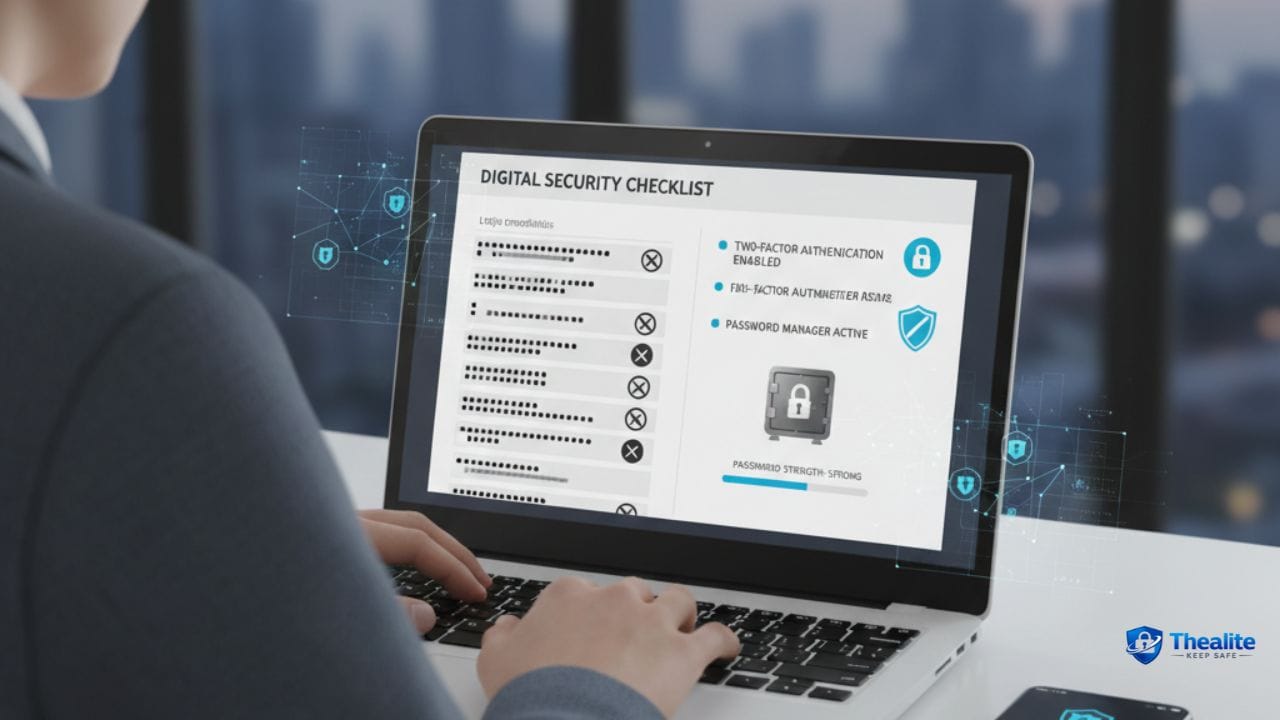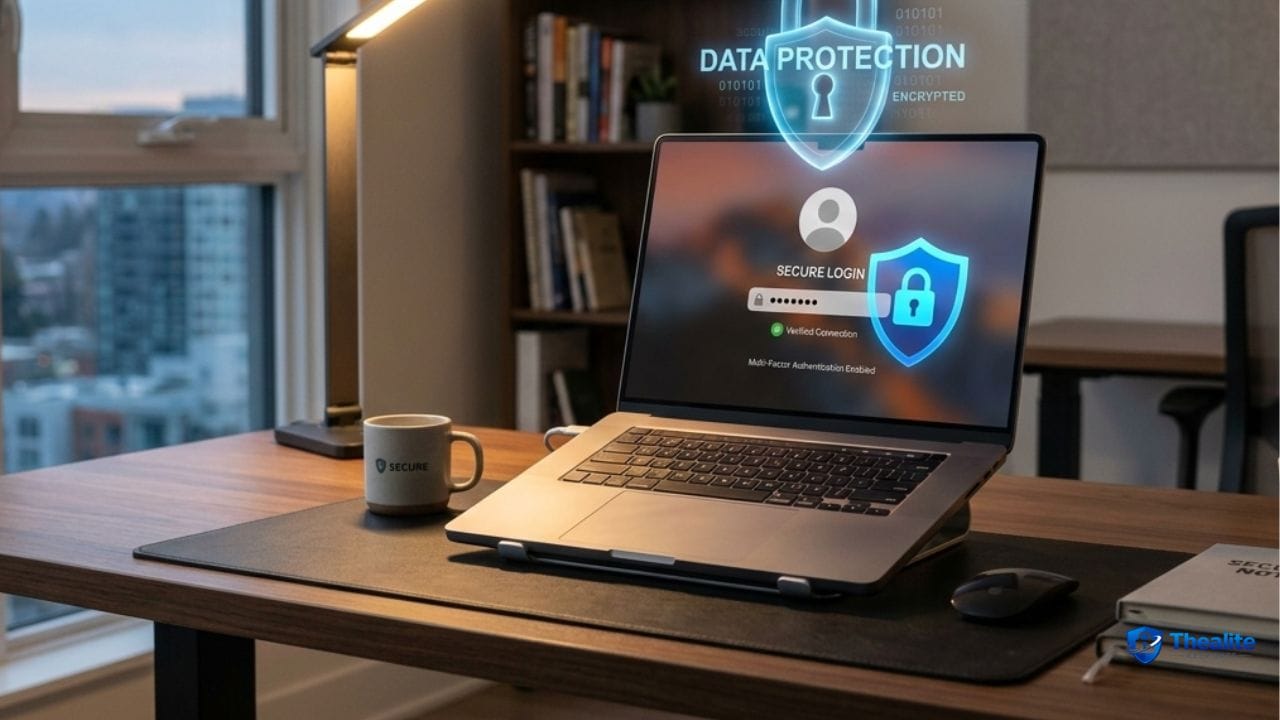
“Confidential information” is any data that could harm you, your family, or your organization if the wrong person gets it. That includes personal identifiers (Social Security number, driver’s license, passport), financial info (bank details, card numbers), medical records, private messages, and business data (customer lists, contracts, internal documents, logins).
The biggest mistake people make is thinking confidentiality is only a “tech” problem. In reality, most leaks happen through everyday habits: weak passwords, sharing files the wrong way, leaving papers in the open, clicking phishing links, or losing a phone. This guide gives a practical system you can use in the U.S.—at home, at work, and online.
Quick Answer (The 10-Point Confidentiality System)
- Identify what’s confidential (documents, accounts, files, conversations).
- Use unique passwords + a password manager; turn on MFA everywhere possible.
- Secure your email account first (it’s the reset key for everything).
- Lock devices (strong passcode, updates, encryption, remote wipe).
- Store sensitive papers in a locked place; shred before disposal.
- Share files safely (least access, time-limited links, correct recipients).
- Avoid phishing: don’t click login links; verify requests through official channels.
- Limit what you post online (no ID photos, addresses, schedules).
- Use backups (encrypted) so you don’t lose control after ransomware/theft.
- If exposed: change passwords, revoke access, monitor accounts, and report quickly.
Step 1: What Counts as Confidential Information?
Confidential information is anything that should not be public. A simple way to categorize it is by impact—what happens if it leaks?
Common categories (examples)
- Identity: Social Security number, passport, driver’s license, birth certificate.
- Financial: bank account/routing numbers, debit/credit card details, tax returns, pay stubs.
- Credentials: passwords, MFA backup codes, security questions, recovery emails/phone numbers.
- Medical: insurance IDs, test results, prescriptions, diagnoses.
- Work/business: customer lists, contracts, internal reports, source code, pricing, HR data.
If you wouldn’t want it printed on a public billboard, treat it as confidential.
Step 2: Secure the #1 Attack Target—Passwords and Accounts
Most confidentiality failures start with account takeover. If someone gets into your email or cloud storage, they can access documents and reset other accounts.
Password rules that actually work
- Use a unique password for every important account (no reuse).
- Use a password manager so unique passwords are realistic.
- Turn on MFA (2-step verification) for email, cloud storage, banking, and social media.
- Store MFA backup codes securely (not in an unprotected notes app).
Password resources: How to Keep Your Password Safe • How to Keep Passwords Safe.
Secure your email first
Email is the master key because password resets go there. If your email is compromised, confidentiality falls quickly.
- Enable MFA for email.
- Check recovery options and remove old phone numbers/emails.
- Be suspicious of unexpected password reset emails.
Identity angle: How to Keep Your Identity Safe Online.
Step 3: Keep Confidential Information Safe on Devices
Phones and laptops are the delivery trucks of confidential information. If a device is lost, stolen, or infected, your files can leak.
Device protection essentials
- Strong passcode + biometrics (avoid simple 4-digit codes).
- Automatic updates on (OS + apps).
- Enable device encryption (common by default on modern devices, but verify).
- Turn on Find My / remote wipe features.
- Use a separate user account on shared computers (don’t share one login).
Phone security help: Keep Phone Safe From Hackers.
Public Wi‑Fi and travel caution
- Avoid logging into sensitive accounts on unknown public Wi‑Fi.
- Use your cellular connection for banking and document access when possible.
- Don’t leave devices unattended in public places.
Step 4: Store Physical Documents the Right Way
A surprising number of privacy leaks happen through paper: mail, medical forms, school paperwork, and printed reports.
Safe storage for paper documents
- Use a locked drawer or home safe for passports, SS cards, and originals.
- Keep documents off desks and counters when guests or contractors are around.
- Take photos/scans for backup and store them securely online (encrypted where possible).
Dispose of paper correctly
- Shred documents with personal/financial info (not just tear them).
- Be cautious with “recycling” bins that are accessible to others.
- Remove labels on packages that show your name/address before discarding.
Document storage resource: Keep Important Documents Safe Online.
Step 5: Safe Sharing (Email Attachments Are Not Always Safe)
Many leaks happen because information is shared with the wrong person or shared too broadly. The fix is to share less, share deliberately, and verify recipients.
Safer sharing rules
- Use the “least access” principle: share only what’s needed, only with the right person.
- Double-check the recipient before sending (especially with autofill email addresses).
- Prefer time-limited links with view-only access instead of unlimited editing access.
- Remove access when the task is done (don’t leave links open forever).
- Avoid sending sensitive info in plain-text messages if there’s a safer method available.
Workplace habit that prevents mistakes
Before sharing: ask yourself, “Would I be comfortable if this email thread was forwarded?” If not, change the sharing method.
Step 6: Stop Phishing and Social Engineering
Phishing is the most common way confidential info gets stolen. The scammer’s goal is to make you click a fake login page or share a one-time code.
Common phishing patterns
- Urgency: “Your account will be locked today.”
- Authority: “This is IT / support / HR.”
- Payment pressure: “Pay this invoice immediately.”
- Code theft: “Tell me the verification code you just received.”
Anti-phishing rules that work
- Don’t click login links in emails/texts—open the official app/site yourself.
- Never share MFA codes or passwords with anyone.
- Verify requests through a second channel (call the official number, message in the official tool).
- Slow down if the message feels rushed—urgency is a scam tool.
Step 7: Reduce Oversharing (Social Media + Everyday Life)
Confidentiality also means limiting what you put out publicly. Attackers use public info to guess passwords, answer security questions, and target scams.
- Don’t post photos of passports, boarding passes, or ID documents.
- Avoid posting your home address, school, routine, or real-time location.
- Be careful with ‘quizzes’ that reveal personal details (pet names, hometown, first school).
Related: Keep Personal Information Safe Online.
Step 8: Backups and Encryption (So You Don’t Lose Control)
Backups aren’t just for accidents—they protect you from ransomware and device loss. If you can restore your data, you don’t have to panic or pay.
- Keep at least one backup that is not always connected to your computer.
- Use encrypted storage for sensitive backups when possible.
- Test your backup occasionally (a backup you can’t restore is not a backup).
Step 9: What to Do If Confidential Information Is Exposed
If you suspect exposure, act quickly. Speed reduces damage.
Immediate action plan
- Change the password for the affected account(s) and any reused passwords elsewhere.
- Secure your email account (password + MFA) if it could be involved.
- Revoke access to shared links and remove unknown devices/sessions.
- Turn on alerts (banking, email logins, account changes).
- Monitor financial accounts and consider credit monitoring steps if identity info leaked.
- Document what happened (dates, screenshots, messages) in case you need to report it.
Banking overlap: Keep Bank Account Safe Online and How to Keep Bank Account Safe.
Copy/Paste Checklist: Keep Confidential Information Safe
- Inventory: know which files/docs/accounts are confidential
- Unique passwords + password manager for key accounts
- MFA enabled for email, cloud storage, banking, and social
- Devices locked, updated, encrypted; Find My/remote wipe enabled
- Sensitive paper stored locked; shred before disposal
- Share safely: least access, time-limited links, verify recipients
- Phishing rules: no login links, no codes shared, verify requests
- Limit oversharing online (no IDs, addresses, routines)
- Encrypted backups maintained and tested
- If exposed: change passwords, revoke access, alert/monitor accounts, document incident
FAQs
What is confidential information?
It’s any information that should not be public because it could cause harm if exposed—identity documents, financial info, passwords, medical records, and business data.
What’s the most important step to protect confidential information?
Securing accounts with unique passwords and MFA—especially your email account—because account takeover is one of the fastest paths to a data leak.
Is it safe to email confidential documents?
It can be risky. If you must, verify recipients carefully and prefer secure sharing links with limited access and expiration instead of broad attachments.
How do I protect paper documents at home?
Store originals in a locked drawer or safe, keep papers off counters when guests are around, and shred sensitive documents before disposal.
What should I do if I accidentally shared confidential info with the wrong person?
Revoke access immediately (delete link permissions if possible), notify the recipient to delete it, change passwords if credentials were included, and document the incident.
Conclusion
Keeping confidential information safe isn’t about one perfect tool—it’s about layers: secure passwords and MFA, protected devices, safe storage for paper documents, careful sharing habits, and strong phishing awareness. Once you set up these systems, protecting confidentiality becomes a routine—and routine is what prevents most leaks.

As a digital marketer, she has received multiple international awards, including Campaign of the Year at the 2023 European Content Awards and Best Use of Content Marketing at the 2022 Global Search Awards. Nicai holds an MSc in Marketing (First Class Honours) from the UCD Smurfit Graduate Business School and she has also completed the Artificial Intelligence Programme at Oxford University’s Saïd Business School. She is also a contributing writer for publications such as Entrepreneur and Esquire.